
Workflow States
A workflow state represents a stage or steps in the workflow process. The number of states added to a workflow will determine the number of steps the workflow will go through or the simplicity or complexity of the workflow.
Usage
- Drag and drop states into the workflow. For more information, refer to state types.
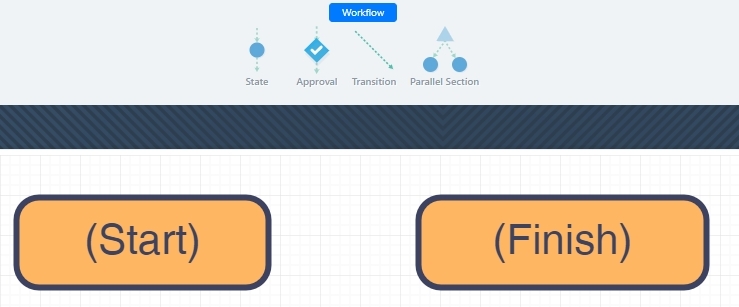
- Drag and drop a Transition into the state you want to transition from.
- Validate the workflow settings.
- Save the project.
Types of States
(Start) State
By default, all workflows start with this state. The (Start) state can be renamed but not deleted.
State Properties
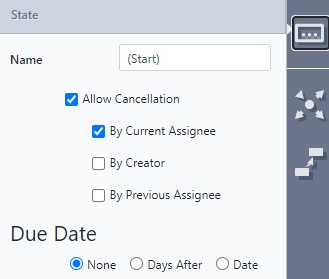
-
Name – By default, a new state is called 'State #' but the name can be changed at any time. However, each state name must be unique.
-
Allow Cancellation – Gives the option to stop or cancel the workflow at this particular state by the following:
-
By Current Assignee – (Default) The person currently assigned to the workflow. This user can click the Cancel button from the Home page or a Dashboard.
-
By Creator – Whoever submitted the first form
-
By Previous Assignee – The person who assigned the workflow to the current assignee
-
Due Date – Set a due date for triggering escalations. Available options are:
-
None – No Due Date
-
Days After – Number of days after the workflow reaches this particular state. Optionally, the Designer can select only Weekdays.
-
Date – Specific date using a reference question in the form (Calculated via Formula or Date Questions type).
-
Observers – Configure a user or group to view a read-only version of an in-progress workflow as well as specify the communication template to use. For more information, refer to Observers.
Approval State
The Approval workflow state is a placeholder for the form using an approval function. When added to the workflow, the user can select an approval from the drop-down list of available approvals that have already been configured in Manage. See Approvals.
Approval Properties
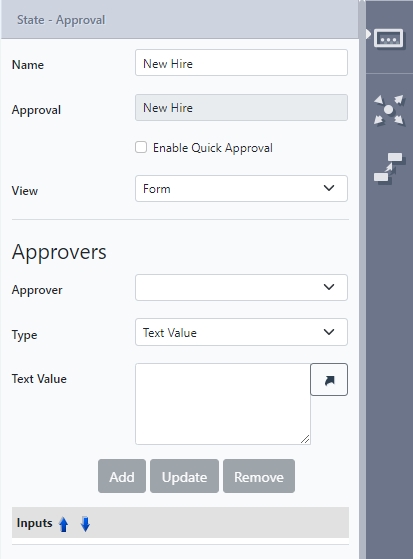
- Name – By default, the name of the selected Approval. This can be renamed at any point.
- Approval – The name of the selected Approval.
- Quick Approval – Enabling this option gives the Approver the ability to quickly approve or reject the request from the Produce dashboard.
- View type – Select from Form or Summary:
- Form – The form is displayed using pages and the Approver will have to use the Next and Back buttons to view the request.
- Summary – Shows all the fields on one page using a form summary view. Useful for small to medium sized forms, where the request can be displayed without too much scrolling. The following configurations are available for summary view:
- Collapsible pages – Group pages in an accordion style tab group
- Include All Multiple Choice Answers – Displays all the answers and highlights the selected answer.
- Answered Questions Only - Only include questions that have been answered.
- Approver – Configure a user that can approve/reject the workflow from the Produce home page or a dashboard. For more information, refer to Approvers.
ApproverThe Approver section will only display if Approvals > Clause Builder type in Manage has been set to User.
- Observers – Configure a user or group to view a read-only version of an in-progress workflow. For more information, refer to Observers.
(Finish) State
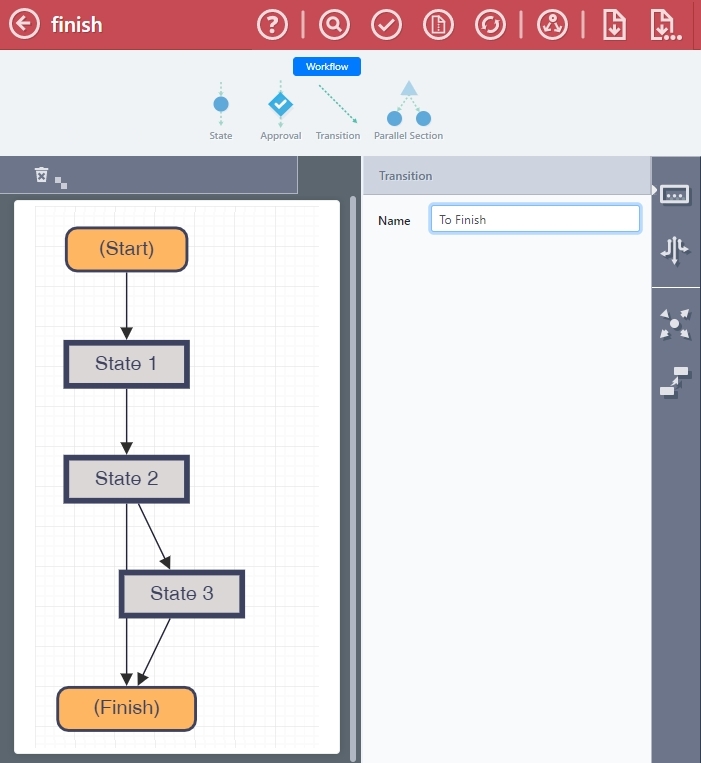
Updated about 1 year ago