
Designing Themes in Theme Builder
Themes provide a set of attributes you can configure to change the look and feel of SmartIQ Produce to suit your brand. Theme attributes are grouped into high level design categories which provide an easy way to navigate and modify your themes.
In Theme Builder, while modifying a theme, you can navigate around the various categories and make any changes you like, even see a live preview of those changes, all without saving the changes. Only once changes are saved can users see them take effect in Produce. Alternatively, you can cancel the changes to keep the theme as it was when last saved.
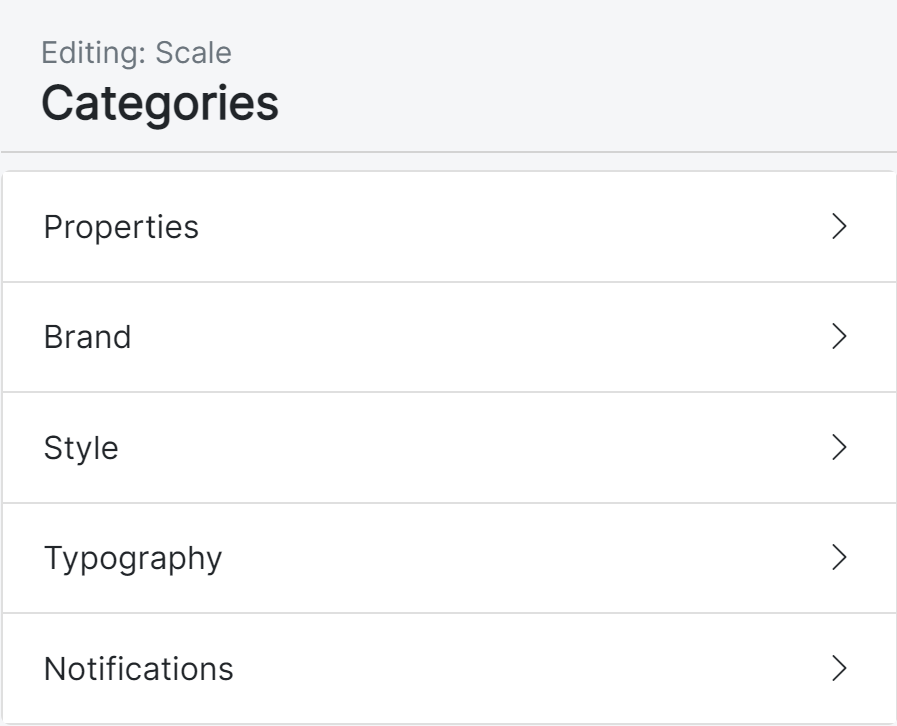
This page describes each of the design categories in more detail. For general overview and usage information, refer to Theme Builder.
Color PickersClick the sample color circle beside any color to show a pop-up color picker. Use the sliders to choose hue, saturation and brightness to find a suitable color, or type a valid hexadecimal color value. The color picker also provides color swatches across the top, allowing you to quickly re-use a color previously set within the theme.
Properties
| Attribute | Description |
|---|---|
| Theme Name | Modify your theme's name. This value must not be empty, and cannot be the same as any other theme. Maximum of 50 characters. |
| Login Page Disclaimer Text | Use the rich text formatting input field to add/modify the disclaimer text for the login page of this theme. This can include links to another website with more information, such as a privacy policy. |
Brand
Colors
| Attribute | Description |
|---|---|
| Brand Primary | Applied to the most visually prominent components, primary color is used on main titles, primary buttons, check boxes and radio controls. It's also used to accent various elements including tabs, page navigation and the wait animation. |
| Brand Secondary | Used on secondary buttons, toggles, accordion tabs and publish folders. |
| Header Background | The background color of the main header shown on Produce home, form pages and dashboards. |
| Header Text | Used for text on the header including the form title. The text color should contrast with the header background for readability. |
| Header Link | Used for links on the header. The link color should contrast with the header background for readability. |
| Header Link Hover | Used for links in the hover state. The hover color should contrast with the header background for readability, and is often set to a slightly lighter or darker shade of the link color. |
Logos
| Attribute | Description |
|---|---|
| Site Logo | Defines a logo to show in the header on full screen devices. Recommended maximum pixel dimensions is 385 (width) x 100 (height). Supported image formats are BMP, JPEG, GIF, SVG, and PNG. |
| Logo Size | Provides a slide control to adjust the size of the main logo for use in the header.
|
| Small Logo | Defines a smaller logo to show in the header on mobile/small screen devices. Recommended pixel dimensions are 60 x 60. Supported image formats are BMP, JPEG, GIF, SVG, and PNG. |
| Favicon | A very small logo used in the browser for tab and bookmarks, depending on browser support. Recommended pixel dimensions are 16 x 16. Supported image formats are PNG, ICO and SVG. |
Logo ScalingWhen you select a site logo, if you don't already have a small logo, it will default to the same as the site logo and apply down scaling. Equally, if you select a small logo before choosing a site logo, the site logo will be an upscaled version of the small logo. To change either case, simply override the logo applied.
Scaling of images, especially upscaling, can create poor quality results.
Style
| Attribute | Description |
|---|---|
| Shape - Corner style | Sets the corner style for all buttons and inputs. Options are:
|
| Depth - Button elevation | Sets whether shadow is used to create an elevated effect on buttons. Note that only primary and secondary buttons are affected. Options are:
|
| Content Width | Sets the ability to control the width of the form content, which changes the left/right margin padding sizes.
On smaller screens with less horizontal resolution, content is always set to 100% of available space regardless of the Content Width setting chosen. |
Typography
Fonts
| Attribute | Description |
|---|---|
| Font Stack | Select the preferred font stack from the drop-down list. Options are:
|
Click Show output to reveal the underlying font-family CSS that will be used in the style for the chosen font stack.
Colors
| Attribute | Description |
|---|---|
| Page Title | Page title appears on the top of every form page. |
| Question Text | Question text color including the various position options of top, left or floating. |
| Body Text | Defines the color of input text and labels, as well as any other text not associated with another text style. |
| Link Text | Anchor link text color includes project links on the home page, link buttons (such as save), and any anchors in labels. |
| Link Hover | Provides a hover color for anchor links. |
Weight
| Attribute | Description |
|---|---|
| Heading Weights | Select how light or heavy to make headings appear, including page, section and column titles. Options are:
|
Not all heading weights are supported by all fonts in all font stacks, and so results can vary from system to system. Most modern systems will support a variety of font weights when using the Sans Serif font stack.
Notifications
Messaging Colors
| Attribute | Description |
|---|---|
| Error | Sets the color used for validation or other errors that may be displayed in the page navigation, input field or finish page. |
| Warning | Color for warning labels and messages. |
| Success | Color for success labels and messages such as form submitted toast messages. |
Help Text
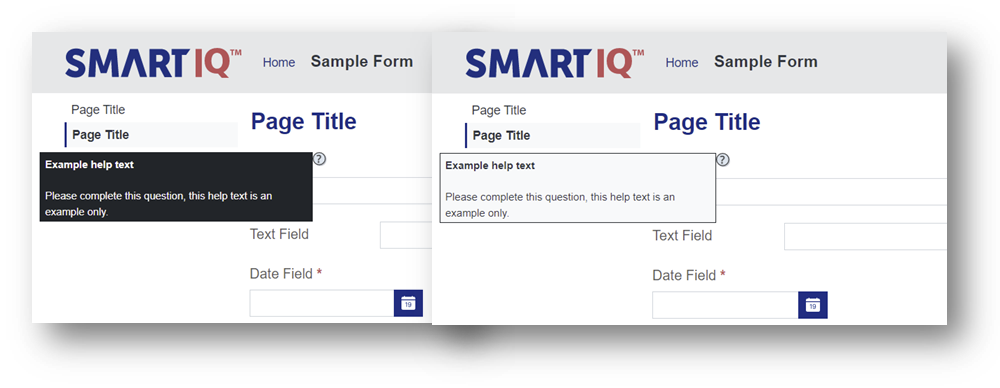
Styling of the help text boxes used at the question level. Select from a light (default) or dark option to reflect the overall aesthetic of a theme.
Updated about 1 year ago