
Template - XSD
One of the recent enhancements is the facility to generate XML file directly from an XSD output. Previously, XML files were to be created manually. The introduction of this feature has reduced the workload for the users.
Note:An.xsd file must exist, in order to generate the XML file.
How to create a new XML file from and .xsd
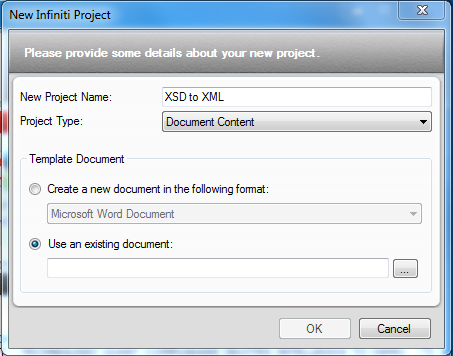
- In the “New Infiniti Project” window, click on “use an existing document” under the “Template Document” section.
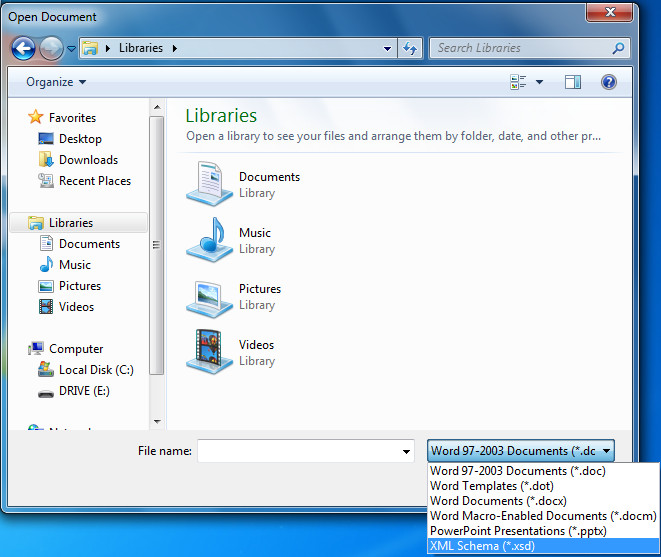
- To browse the .xsd file, select the “XML Schema (*.xsd)” from the file format first and then navigate to the .xsd file and open it.
Adding multiple files
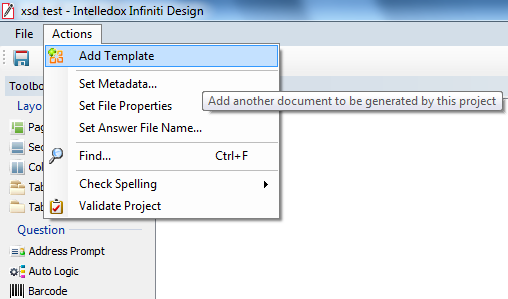
It is possible to add multiple .xsd and word files to generate multiple XML and word outputs. There are two ways to add files.
- Click on Action and then add a template
Or,
2. Go to Placeholders, right click and click on Add Template.
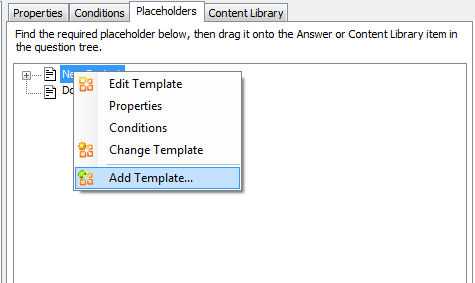
What is noticeable on this new feature is that after adding the .xsd, the placeholders in the file can automatically be seen under the ‘’Placeholder’’ tab on the design interface. This is because it reads the .xsd file and registers the nodes that can be filled in.
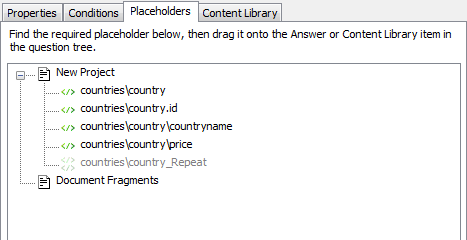
How the XML looks on document generation
- In Project design, two questions have been added with their respective placeholders assigned.
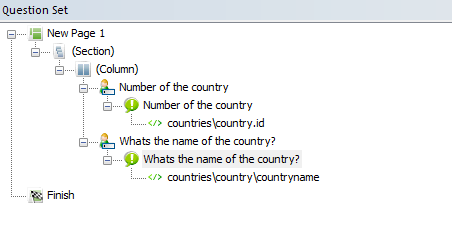
- The above design produces the following output in Produce.
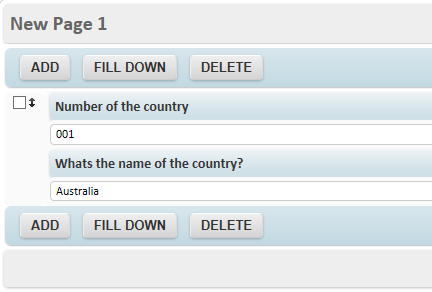
Note:The user has entered ‘001’ for ‘Number of the country’ and ‘Australia’ for ‘Whats the name of the country?’. These answers have been mapped to their respective .xsd nodes.
- After the form has been submitted, the following XML file is generated:
<?xml version="1.0" encoding="UTF-8"?>
<countries>
	 <country id="001">
   			<countryname>Australia</countryname>
        <price>
   </country>
</countries>
Updated over 1 year ago